Windows Event Viewer works for a quick look at one local log. Once Windows events become part of your regular work, its limits cost time: multi-log investigations are awkward, remote systems are cumbersome to manage, and reusable analysis setups are limited. A dedicated tool should let you move from an alert or symptom to a repeatable investigation without rebuilding the same view every time.
Our recommendation is Event Log Explorer. It provides the most complete desktop workflow in this comparison for live local and remote logs, saved EVTX and legacy EVT files, multi-log analysis, reusable Tasks, direct reporting, and optional forensic recovery or continuous collection. The other products below remain useful, but most solve a narrower problem or belong to a different product category.
Disclosure. We develop Event Log Explorer. The comparison uses product documentation current in September 2026 and states the cases where a free viewer, DFIR parser, hunting tool, or server platform addresses a different requirement.
What a Better Event Viewer Should Provide
For occasional troubleshooting, the built-in viewer is adequate. For sustained work, the useful dividing line is whether the tool improves the complete investigation rather than only opening an EVTX file.
- Open live local and remote logs as well as saved files without changing tools.
- Combine related channels and computers into one chronological investigation.
- Preserve queries, columns, sorting, source lists, and display choices for later reuse.
- Filter early enough to avoid loading or transferring irrelevant events.
- Export findings in formats colleagues can use without rebuilding the analysis.
- Extend the same workflow into recovery or monitoring when the job requires it.
Quick Comparison by Workflow
These tools serve different jobs. Start with the work you need to do; the detailed sections below explain each tool’s capabilities and limits.
| Tool | Main job | How you work | License |
| Event Log Explorer | Investigate Windows events across local, remote, and saved logs; reuse the setup | Desktop app; optional command-line exports | Free noncommercial home use; paid editions |
| Microsoft EventLogExpert | Explore live local logs and EVTX files in a free GUI | Desktop app | MIT open source |
| FullEventLogView | Inspect local, remote, or saved logs quickly; export results | Portable app; command-line export | Freeware |
| LogViewPlus | Analyze Windows events alongside text, Syslog, and other log formats | Desktop app | Commercial |
| EvtxECmd and Timeline Explorer | Turn offline EVTX collections into timelines for forensic review | Command-line parser plus desktop viewer | Free tools |
| Hayabusa | Find suspicious activity with detection rules across Windows events | Command-line scan and timeline export | AGPLv3 open source |
| ManageEngine EventLog Analyzer | Collect, retain, and monitor logs centrally across many systems | Server with web console | Free up to five sources; paid plans |
1. Event Log Explorer Best Overall for Windows Event Log Analysis
Designed for administrators, support engineers, security analysts, and forensic investigators who repeatedly work with Windows events
License: free for personal noncommercial home use; commercial editions start at $209 for Standard Edition
Event Log Explorer is our recommended Windows Event Viewer alternative for recurring investigations. It combines live local and remote access, EVTX and legacy EVT support, reusable multi-source Tasks, direct Excel and PDF export, and optional damaged-log, disk-image, or continuous-collection workflows.
That combination matters because Windows event analysis rarely stays inside one file. A service failure can involve the System log, an application channel, and events from another computer. A security case may begin with live logs and end with offline evidence. Event Log Explorer keeps those steps in one interface and lets the analyst save the setup for the next occurrence.
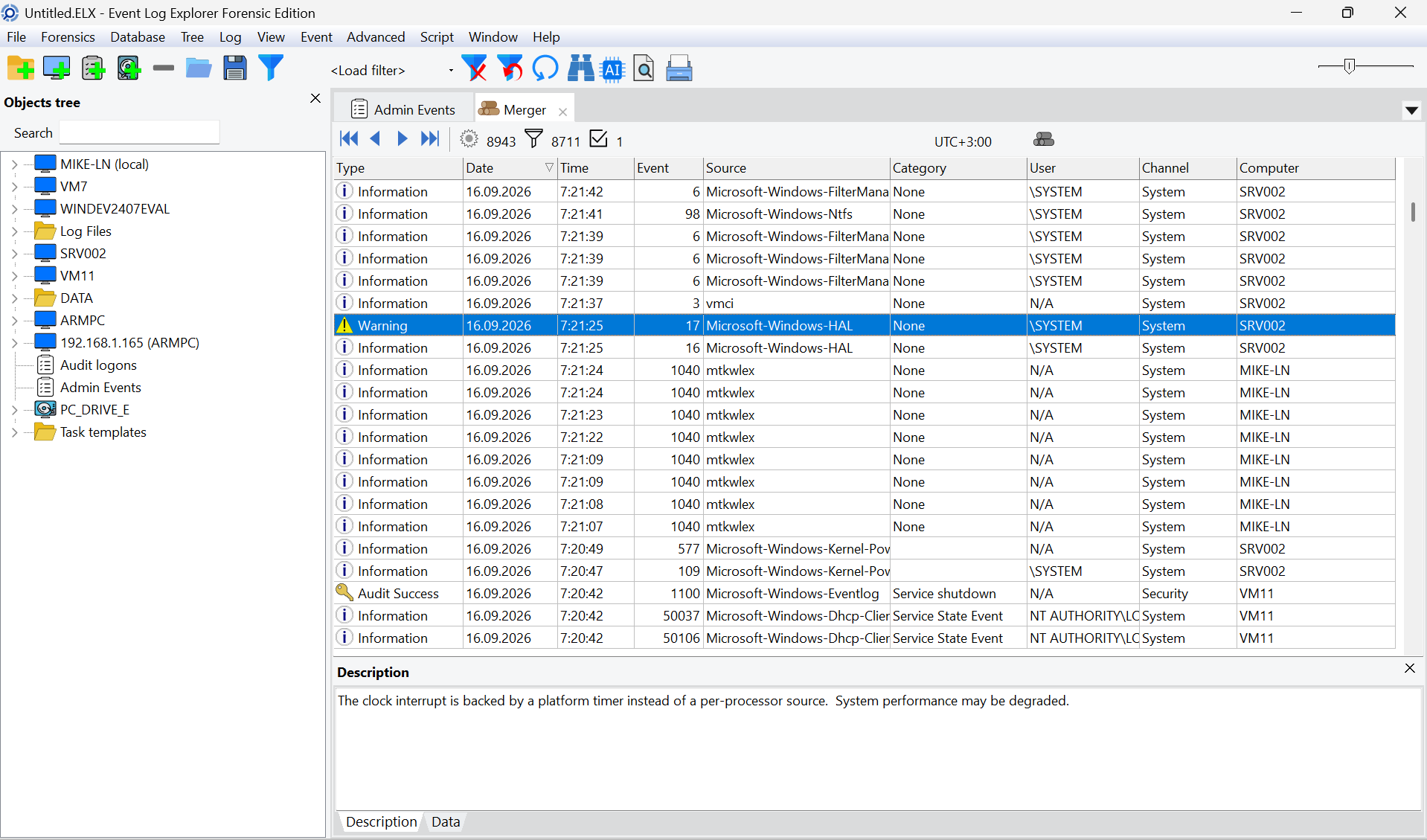
Events from different computers and channels merged into one chronological view in Event Log Explorer.
Remote Work Is Part of the Core Product
Remote access is more than a Connect to Computer command. Event Log Explorer maintains a computer tree with groups and credentials, can import computers from Active Directory, and includes Network Scanner and Connectivity Testing tools. That makes it practical for support teams that work with remote event logs every day.
Source-side XML queries can reduce the events transferred from a remote computer before they cross the network. Load-time filters narrow the initial dataset, while after-load filters support fast interactive refinement. These three filtering stages serve different purposes and avoid treating every investigation as a full-log download followed by a local search.
Tasks Preserve the Investigation
An Event Log Explorer Task is more than a saved filter. It can retain the selected computers and log sources, XML query, columns, sorting, and display options. Predefined templates make a working method reusable; the Audit RDP logons example builds on targeted filtering by event content. Workspaces keep several related views together. Custom columns, bookmarks, color coding, charts, reports, and pivot charts help an analyst move from individual events to patterns without exporting every intermediate step.

A reusable Task created from the Audit RDP logons template for EVTX files from two computers.
When results do need to leave the tool, Event Log Explorer exports directly to Excel, HTML, text, and PDF. Command-line options support scheduled or repeatable exports, and Enterprise and Forensic editions add PascalScript for more specialized automation.
The Product Family Extends the Same Workflow
- Standard Edition. Live local and remote logs, EVTX and EVT files, merged views, Tasks, templates, workspaces, charts, reports, command-line automation, and Copilot assistance.
- Forensic Edition. Direct access to damaged EVTX and EVT files, imaged-computer and raw-image analysis, deep scan, searches for removed events, snapshots, and other recovery-oriented checks. Pricing starts at $529.
- Enterprise Edition. Elodea can collect events continuously into Microsoft SQL Server and trigger alerts by email, executable, or HTTP request. Enterprise Edition starts at $529 for one user and five monitored computers.
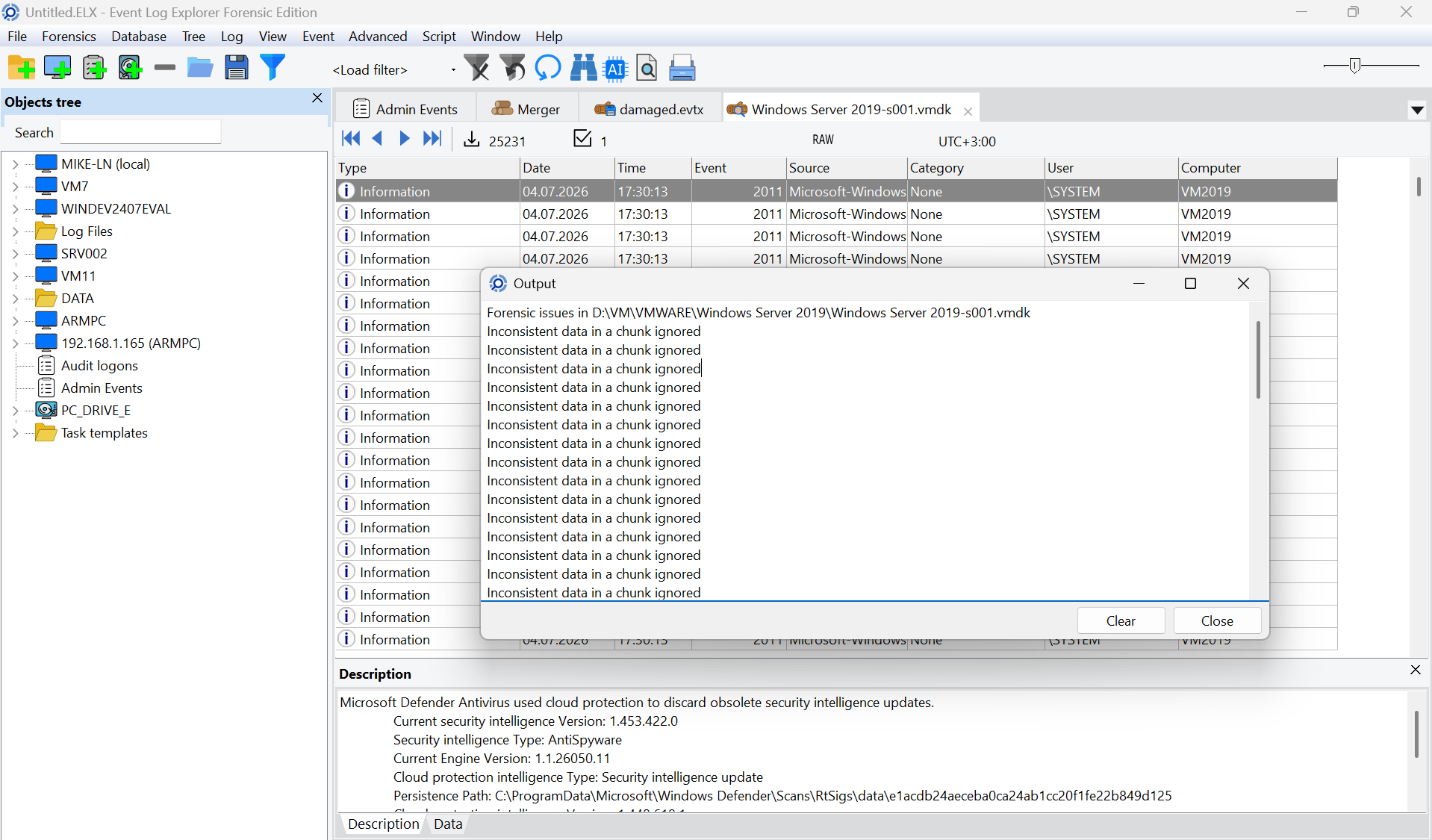
Deep Scan results from a damaged VMware VMDK image, including recovered events and skipped inconsistent data.
The built-in Copilot feature is deliberately analyst-controlled. Event Log Explorer prepares a prompt in an embedded browser, and the user chooses what to submit. Descriptive details remain visible in the application and are not automatically copied into the prompt. This makes AI assistance useful without turning the viewer into an autonomous data-upload pipeline.
Pricing and edition details are available on the product site.
Try Event Log Explorer with your own logs. Download the current release, or compare Standard, Forensic, and Enterprise editions to choose the workflow that fits your environment.
When Another Category May Fit
Choose a smaller free utility if you only open an EVTX file a few times a year. Choose a general log viewer when Windows events are a small part of a mixed text, Syslog, and database workflow. Use a CLI hunting tool when the first step is running Sigma rules across a large evidence collection. Use a server platform when the requirement is organization-wide retention, compliance, and correlation across many source types. The right starting point depends on the workflow.
2. Microsoft EventLogExpert
Use case: users who want a free modern Windows Event Log interface for local live logs and saved EVTX collections
License: MIT open source
Microsoft EventLogExpert is the main free GUI comparison point in this list. It opens EVTX files or folders, combines them with live local logs, filters structured data, saves filters, and exports CSV or JSON. It also offers a timeline histogram, in-view search, statistics, filter lenses, correlation details, and built-in triage scenarios.
The documented live workflow is local and requires Windows 11, Windows Server 2022, or Windows Server 2025. EventLogExpert does not provide legacy EVT support, remote-computer management, damaged-log recovery, direct disk-image scanning, continuous collection, or central storage. Its offline-image provider database resolves descriptions; it does not recover event logs from the image itself.
3. FullEventLogView
Use case: quick local, remote, or EVTX viewing with no installation
License: freeware
FullEventLogView is a compact NirSoft utility that starts quickly and covers the common viewing jobs. It reads local and remote Windows event logs, opens EVTX files, filters events, displays descriptions and raw XML, and exports from the GUI or command line. Supported output includes text, CSV, tab-delimited, HTML, XML, JSON, and raw event XML.
Its command-line options, automatic refresh, and tray notifications make it useful for simple scripts or lightweight watching. The product remains a viewer, however. It does not provide the multi-step Task model, investigation workspaces, charts, reports, forensic recovery, or integrated collection found in Event Log Explorer. It also targets the modern Windows Event Log API rather than legacy EVT workflows.
4. LogViewPlus
Use case: teams that need one desktop application for Windows events and many non-Windows log formats
License: commercial; Personal $45 and Corporate $95 per user at the time of writing
LogViewPlus approaches the problem as a general log-analysis product. It can connect to local and remote Windows Event Logs, parse EVTX files, merge logs, build dashboards and reports, query parsed entries with LVP SQL, and attach rules or notifications to filters. It also handles application text logs, Syslog, databases, ETW, UDP, and other sources.
That breadth is useful when an incident crosses several unrelated formats. The tradeoff is depth in Windows-specific workflows. Teams that mainly work with Windows events gain a more focused remote-management model, legacy EVT support, reusable Tasks, and optional forensic recovery or continuous collection from Event Log Explorer. LogViewPlus also uses AI narrowly as a prompt helper for constructing LVP SQL rather than as event-focused assistance.
5. EvtxECmd and Timeline Explorer
Use case: forensic analysts who convert EVTX collections into normalized timeline datasets
License: EvtxECmd is MIT open source; Timeline Explorer is free to use but closed source
EvtxECmd is a command-line parser for batch processing EVTX evidence into CSV, XML, or JSON. Custom Maps normalize event-specific fields into consistent columns, and volume shadow copy options fit established DFIR collection pipelines. Timeline Explorer then provides a GUI for sorting, filtering, grouping, and reviewing CSV or Excel output.
This pipeline is effective when evidence is already being normalized with other forensic artifacts. It is less direct for an analyst who needs to move among live remote logs, event descriptions, merged source views, bookmarks, and repeatedly refined filters. Event Log Explorer works on the original live or saved events and preserves the interactive investigation; EvtxECmd produces datasets for a downstream timeline workflow.
6. Hayabusa
Use case: security teams that run detection rules across large EVTX collections
License: GNU AGPLv3; detection rules use the separate Detection Rule License 1.1
Hayabusa is a Rust-based hunting and forensic timeline tool. It processes local live logs or offline EVTX collections, produces CSV, JSON, or JSONL timelines, and supports Sigma rules including Sigma 2 correlation. Enterprise-scale collection can be integrated through Velociraptor.
Hayabusa is a detection engine rather than a desktop Event Viewer replacement. It makes sense when the first question is whether a large collection matches known suspicious behavior. It is not designed for comfortable remote browsing, rich event-description work, saved interactive investigations, or damaged-log recovery. Teams can use Hayabusa for first-pass hunting and Event Log Explorer for the detailed investigation that follows.
7. ManageEngine EventLog Analyzer
Use case: organizations that need server-based retention, compliance reporting, correlation, and alerting across many systems
License: Free Edition for up to five log sources; Professional starts at $795 per year for 10 sources
ManageEngine EventLog Analyzer collects, archives, searches, correlates, and reports on logs from Windows and hundreds of other source types. It belongs in this list because buyers often search for Event Viewer alternatives when their real requirement is continuous centralized monitoring. It is a server platform, not a direct replacement for opening and investigating a few EVTX files.
The platform’s advantages are central storage, compliance reports, real-time security auditing, and broad infrastructure coverage. Zia Insights can generate incident summaries, timelines, possible MITRE ATT&CK mappings, and mitigation guidance using Azure OpenAI, but it is available only in Premium and Distributed editions. Buyers should not infer that the $795 Professional entry price includes it.
For a Windows-only environment that needs collection from a handful or a few dozen computers, Event Log Explorer Enterprise can be simpler and keeps collected events in the same analysis interface. ManageEngine becomes relevant when heterogeneous sources, long-term governance, and organization-wide server workflows are the primary requirement.
Which Tool Should You Choose
Start with the work you need to repeat. Product category is more important than the number of checkmarks on a feature page.
| Your main requirement | Recommended starting point |
| Repeated investigation of local, remote, saved, or legacy Windows logs | Event Log Explorer |
| Recovery of damaged logs or analysis of disk images | Event Log Explorer Forensic Edition |
| Continuous collection in a smaller Windows environment | Event Log Explorer Enterprise Edition |
| A free desktop app for live local logs and EVTX files | Microsoft EventLogExpert |
| A portable viewer with scripted CSV, JSON, or XML export | FullEventLogView |
| Windows events alongside text, Syslog, and application logs | LogViewPlus |
| Batch parsing of EVTX into forensic timelines | EvtxECmd and Timeline Explorer |
| Detection-rule scanning across large EVTX collections | Hayabusa |
| Central retention, monitoring, and compliance reporting across many sources | ManageEngine EventLog Analyzer |
Frequently Asked Questions
What Is the Best Alternative to Windows Event Viewer?
Event Log Explorer is the best overall alternative for professionals who regularly investigate Windows Event Logs. It combines live local and remote sources, saved EVTX and legacy EVT files, multi-log views, reusable Tasks, reporting, automation, and optional forensic or collection features in one desktop product.
Is There a Free Alternative to Event Viewer?
Yes. Microsoft EventLogExpert provides a free modern GUI for current Windows versions, while FullEventLogView is a lighter portable viewer with extensive command-line export. Event Log Explorer is also free for personal noncommercial use at home.
What Is the Best Tool to Open EVTX Files?
For a quick look, Event Viewer, EventLogExpert, or FullEventLogView can open EVTX files. Choose Event Log Explorer when the file is part of a larger investigation that needs several logs, reusable queries, event descriptions, reporting, remote context, or forensic recovery.
Can I View Multiple Windows Event Logs Together?
Yes. Event Log Explorer merges events from several live logs or saved files into one chronological view and preserves the source set inside a Task. EventLogExpert and LogViewPlus can also combine sources, but Event Log Explorer adds the reusable Windows-specific investigation model around that view.
What Should I Use for Forensic EVTX Analysis?
Event Log Explorer Forensic Edition is the most complete choice here for interactive work with damaged logs, disk images, deep scans, snapshots, and searches for removed events. EvtxECmd is useful when the goal is batch parsing into normalized datasets, while Hayabusa focuses on automated detection across large collections.
Do I Need a SIEM to Monitor Windows Event Logs?
Not always. Event Log Explorer Enterprise can collect Windows events continuously into SQL Server, send alerts, and keep analysis in the desktop application. A large heterogeneous environment with formal compliance and SOC workflows is a better match for a server platform such as ManageEngine EventLog Analyzer.
What About Microsoft Log Parser?
Log Parser 2.2 remains useful for legacy scripts and specialized SQL-like queries across several data formats. It has not evolved with the modern Windows Event Log ecosystem, so it should not be the starting point for a new Event Viewer replacement in 2026.
Conclusion
A free viewer is enough when Windows events are an occasional task. When they are part of your job, Event Log Explorer provides the most complete dedicated desktop workflow in this comparison. It manages live local and remote systems, combines modern and legacy logs, preserves repeatable investigations, exports usable reports, and extends into recovery or continuous collection without forcing the analyst into a different product.
The remaining tools address narrower workflows: a no-cost local GUI, a portable viewer, mixed-format logs, batch DFIR parsing, Sigma-based hunting, or organization-wide log management. For sustained Windows Event Log analysis, start with Event Log Explorer.
Ready to replace Event Viewer for regular investigations? Download Event Log Explorer or review pricing and licensing for the edition that matches your workflow.


